Windows · Cogitsune Music 2.0 · Feature guides
New ways to read, search, paint and share your music
Read your code as a score and write notes back, search a song for a motif, turn a sound into notes, paint a landscape or a sound, and share your music as a video.
These guides describe the Windows development build as of . Some features may not yet be in the version currently on the Microsoft Store. The controls described here are in the desktop app.
New to the app? Start with the guides to Code, sound, the Composer, AI and MIDI.
Browse the complete RAMAA tutorial library →
Read, write & print
Score: sheet music you can play and edit
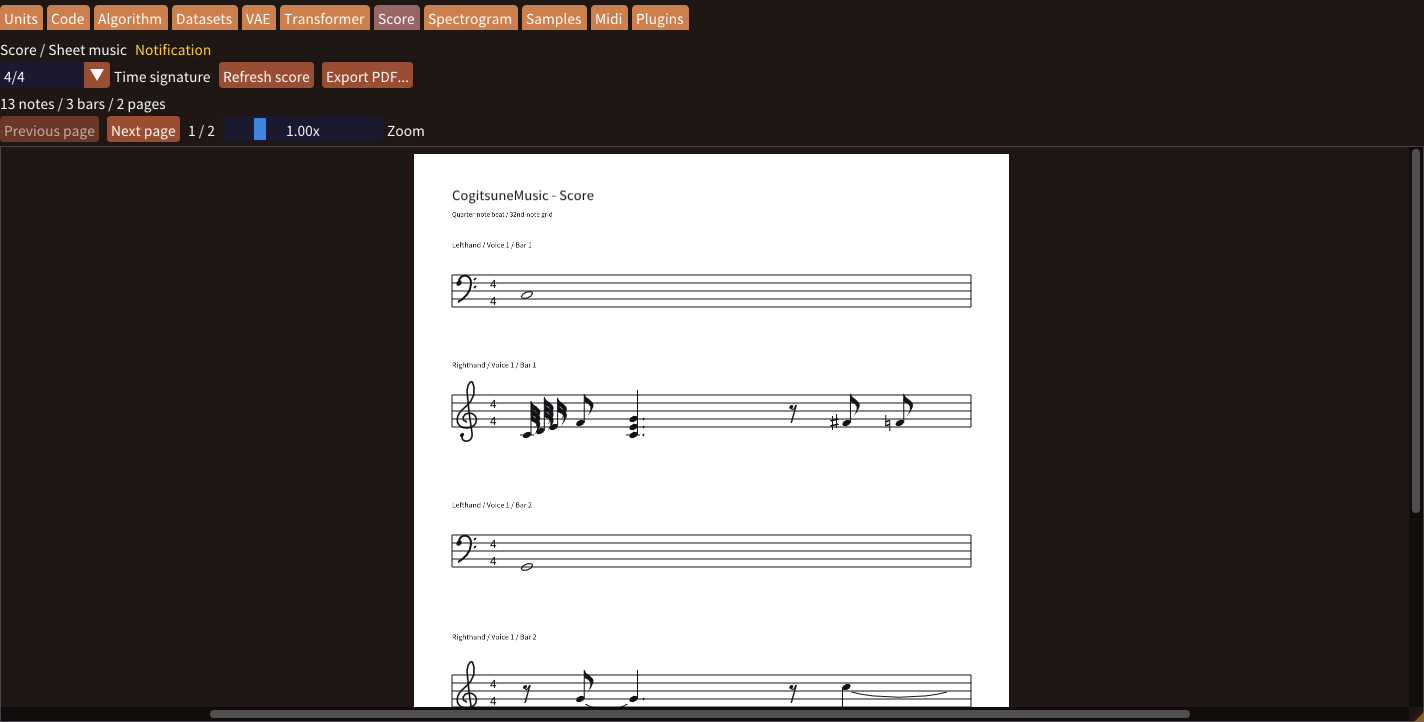
The Score tab shows the music in Code as notation, part by part. Rhythm is grouped with beams, and triplets, slurs and staccato are drawn. With Sampler as percussion on, sampler() hits appear on a percussion staff.
View: read and follow
- Write or open music in Code, then open Score. Choose a Time signature and use Zoom and the page buttons.
- Press Play. A red line shows the playing position, and Follow playback turns the pages for you. Pause and Stop work as usual.
- Click a note to jump to its source line in Code. Drag on empty paper to select notes, then Ctrl+C to copy them for the piano roll or Find notes.
- Choose Export PDF... for a printable score, or Export MusicXML... for Dorico, MuseScore, Sibelius or Finale.
Write: notation editor
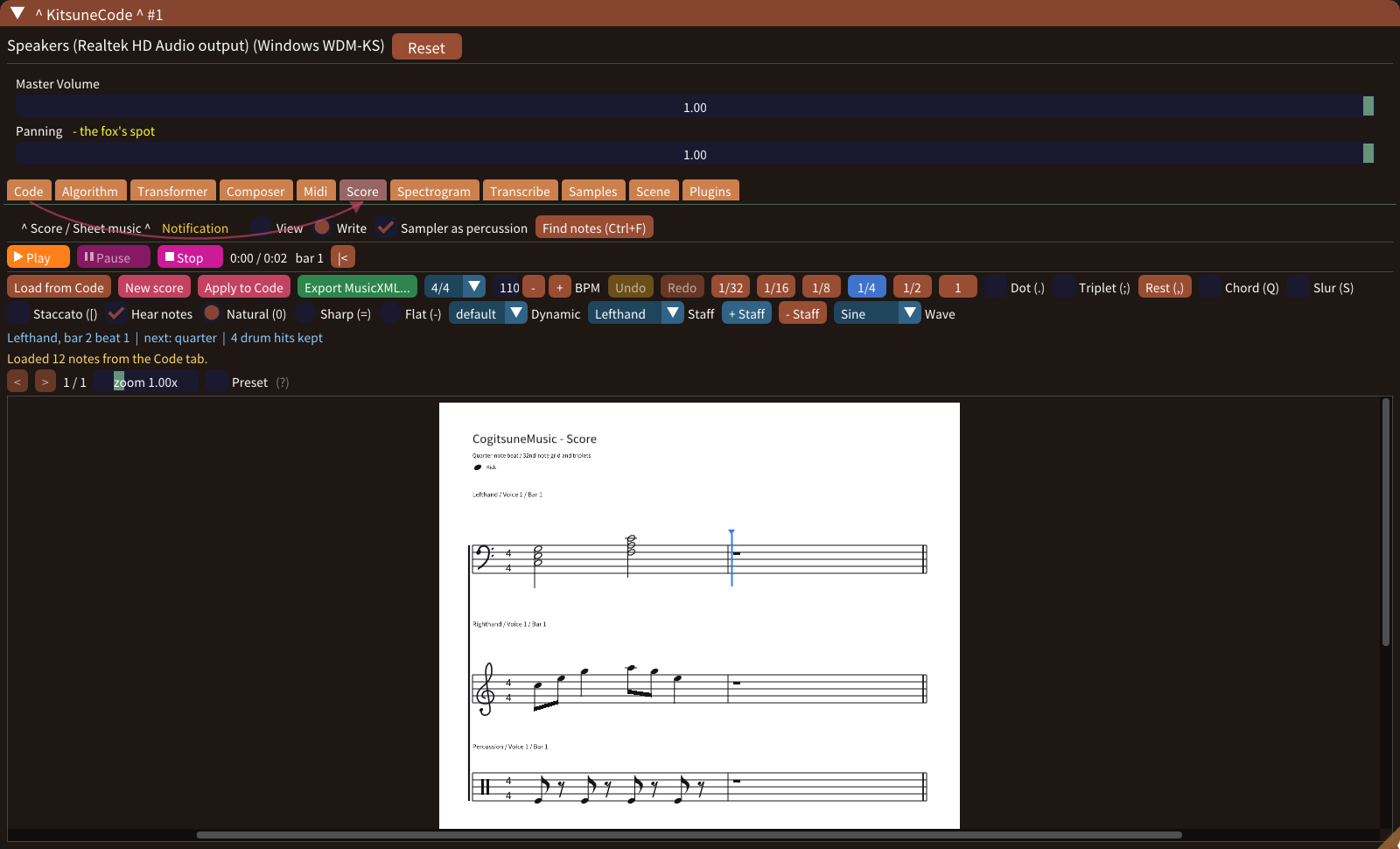
Switch to Write to edit like a notation program. Type letters A–G to write notes, choose the next length with 2–8 (32nd to double whole), and toggle dots (.), triplets (;), chords (Q), slurs (S) and staccato ([). , writes a rest. Hear notes plays what you write; Apply to Code sends the score back to the Code tab.
The score is a reading of note-generating code. Recorded audio is not transcribed here; use Transcribe for that. Check the exported files in the application that will use them.
Search your music
Find notes: search for a motif
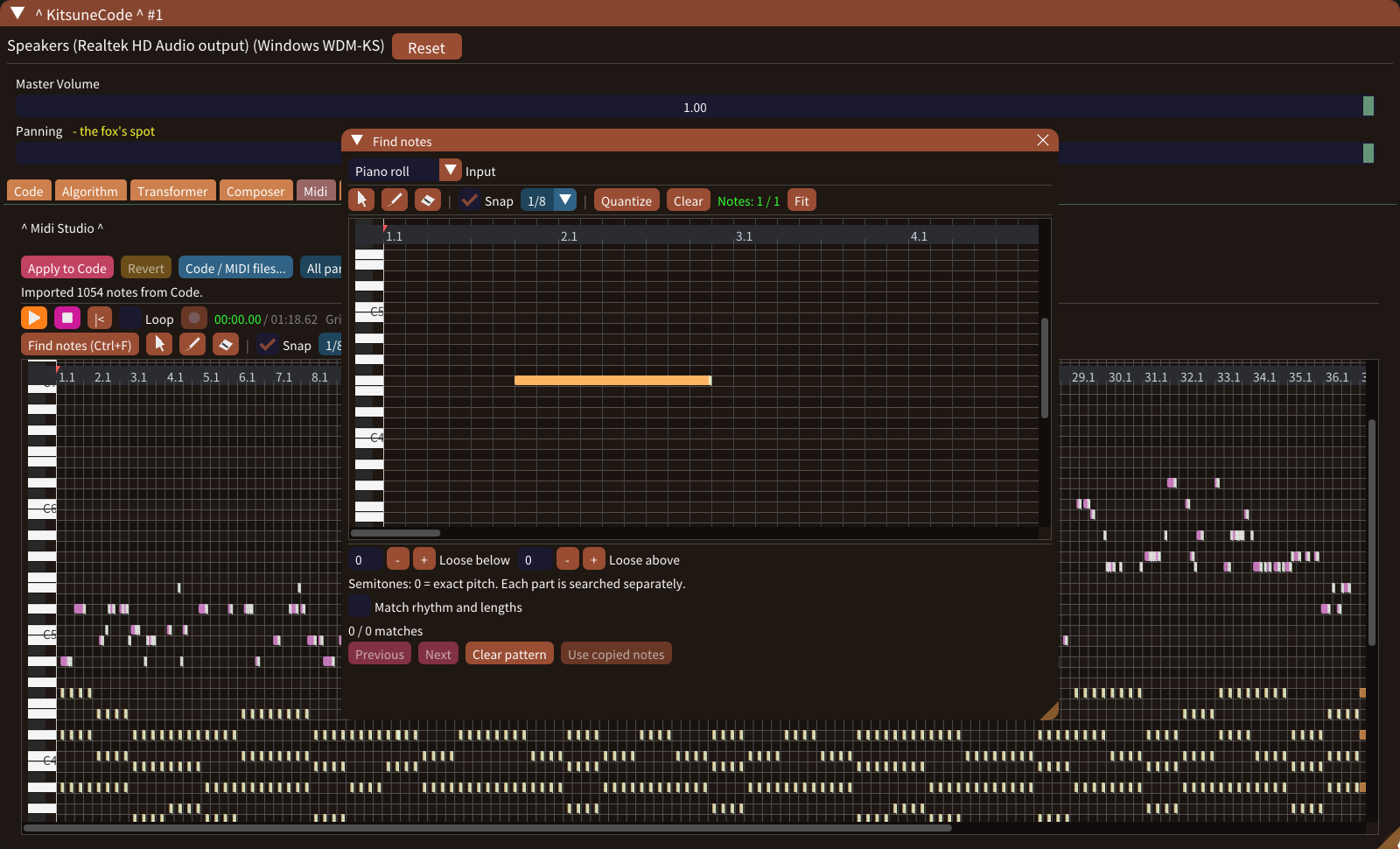
Press Ctrl+F, or Find notes, in Code, Midi, Score or the Model Retrainer's piano roll. A movable search window opens in front of the editor.
- Choose the Input: type note names or MusicCode (
C4 D4 E4,60 62 64,play(C4, 1)), write on a small score, or draw in a small piano roll. - Set Loose below and Loose above in semitones to accept nearby pitches. Turn on Match rhythm and lengths to compare timing too.
- Step through the matches with Previous and Next. In the piano roll, every match is outlined in yellow and the current one in white.
- Copy notes in any editor with Ctrl+C and press Use copied notes to search for them.
Each part is searched separately, patterns can be up to 128 notes, and searching never changes your music.
Sound into notes
Transcribe: pitch, beat and melody from a WAV
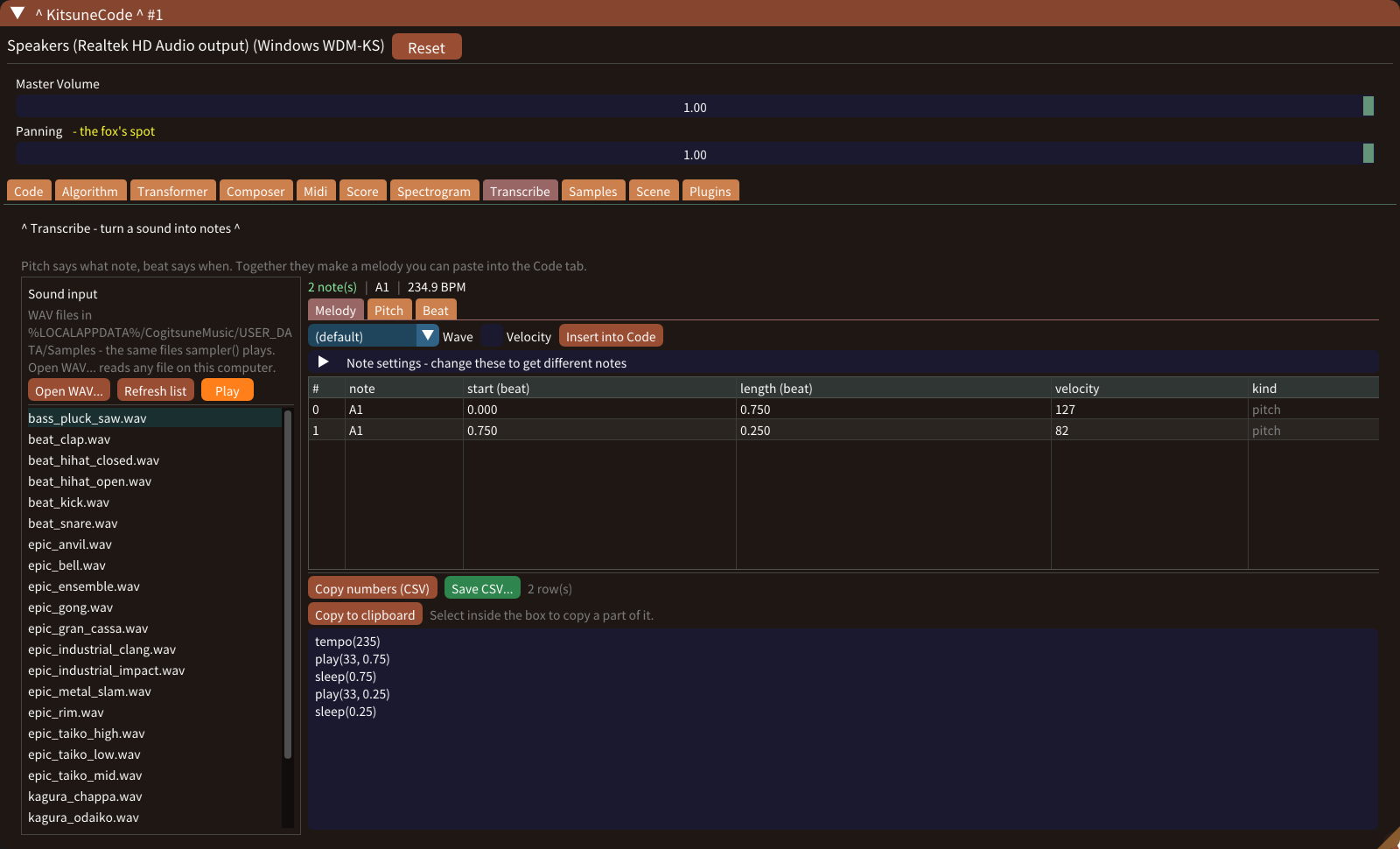
bass_pluck_saw.wav. Select the image to enlarge.Transcribe listens to a WAV: Pitch says what note, Beat says when, and together they make a Melody you can paste into Code.
- Select a file from the list (the same files
sampler()plays) or use Open WAV... for any file on your computer. Play lets you hear it. - Read the Melody table of notes, starts, lengths and velocities, or look at Pitch and Beat.
- Open Note settings if the notes are too short, too many or too few, and analyse again.
- Press Insert into Code to paste the
play()lines at the cursor, or Save CSV... to keep the numbers.
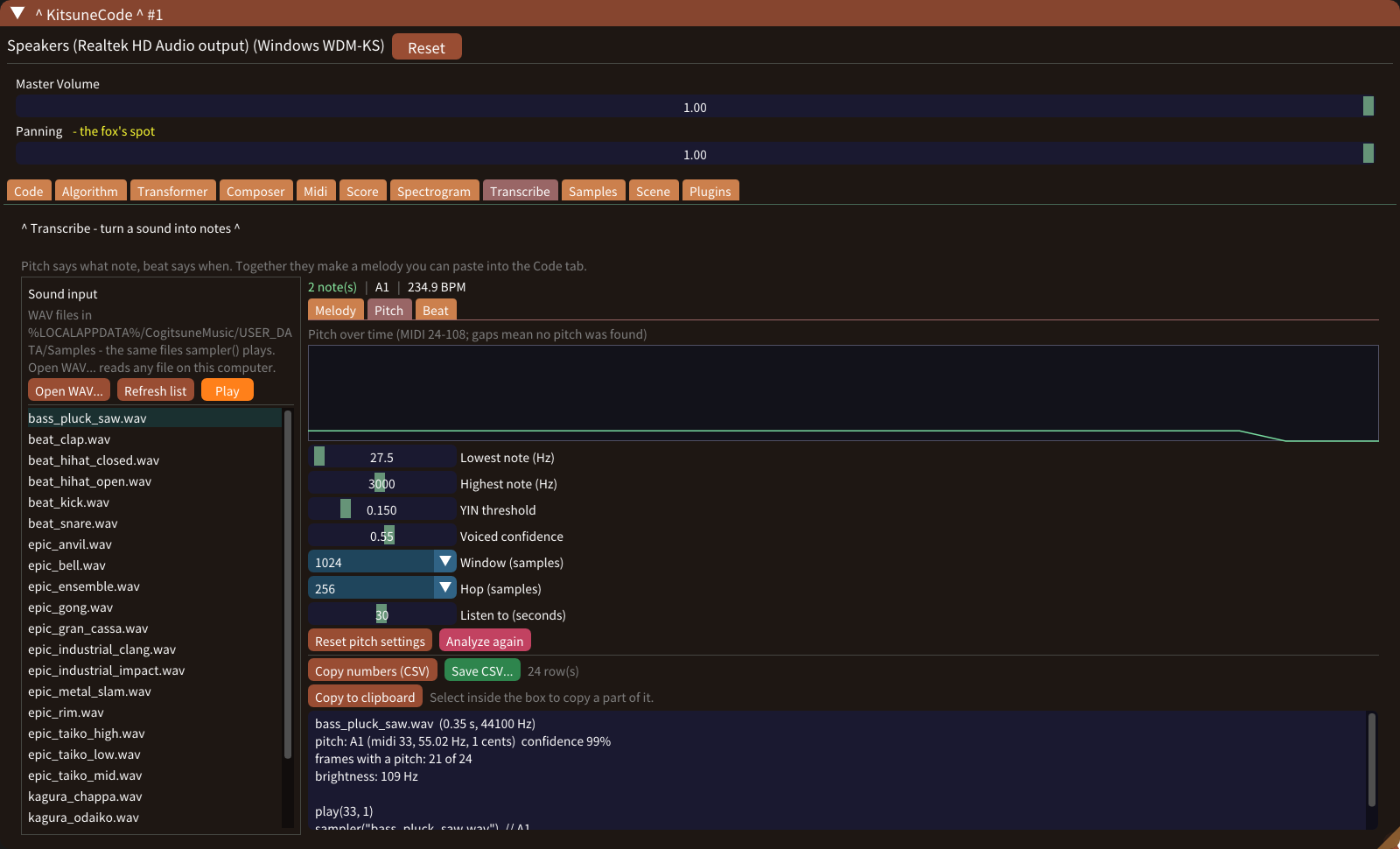
Detection is an estimate and works best on one clear note at a time. Listen to the result and correct it in Code.
Paint a landscape
Scene: a musical map
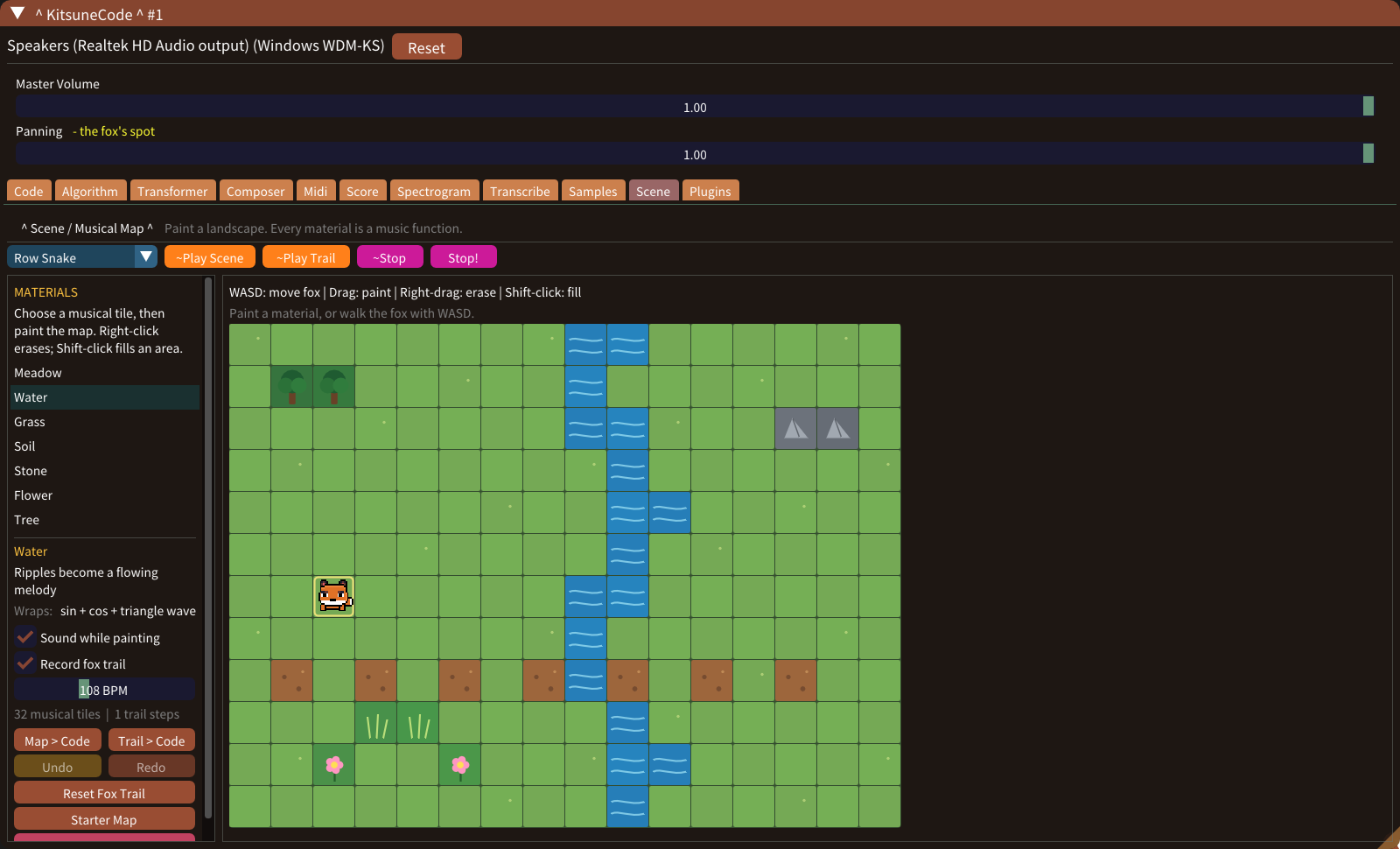
In Scene, every material is a music function. Water, for example, wraps sine, cosine and a triangle wave into a flowing melody; meadow, grass, soil, stone, flowers and trees each sound different.
- Choose a material and drag to paint the map. Right-drag erases; Shift+click fills an area. Starter Map gives you a ready-made landscape.
- Press ~Play Scene to hear the map in the chosen order, such as Row Snake.
- Walk the fox with WASD, then press ~Play Trail to hear the path it took.
- Use Map > Code or Trail > Code to continue in Code, Score or Midi.
Share Studio can also use the Scene's musical map as the picture of a video, with the fox following the music.
Draw a sound
Spectrogram: paint, listen and reuse
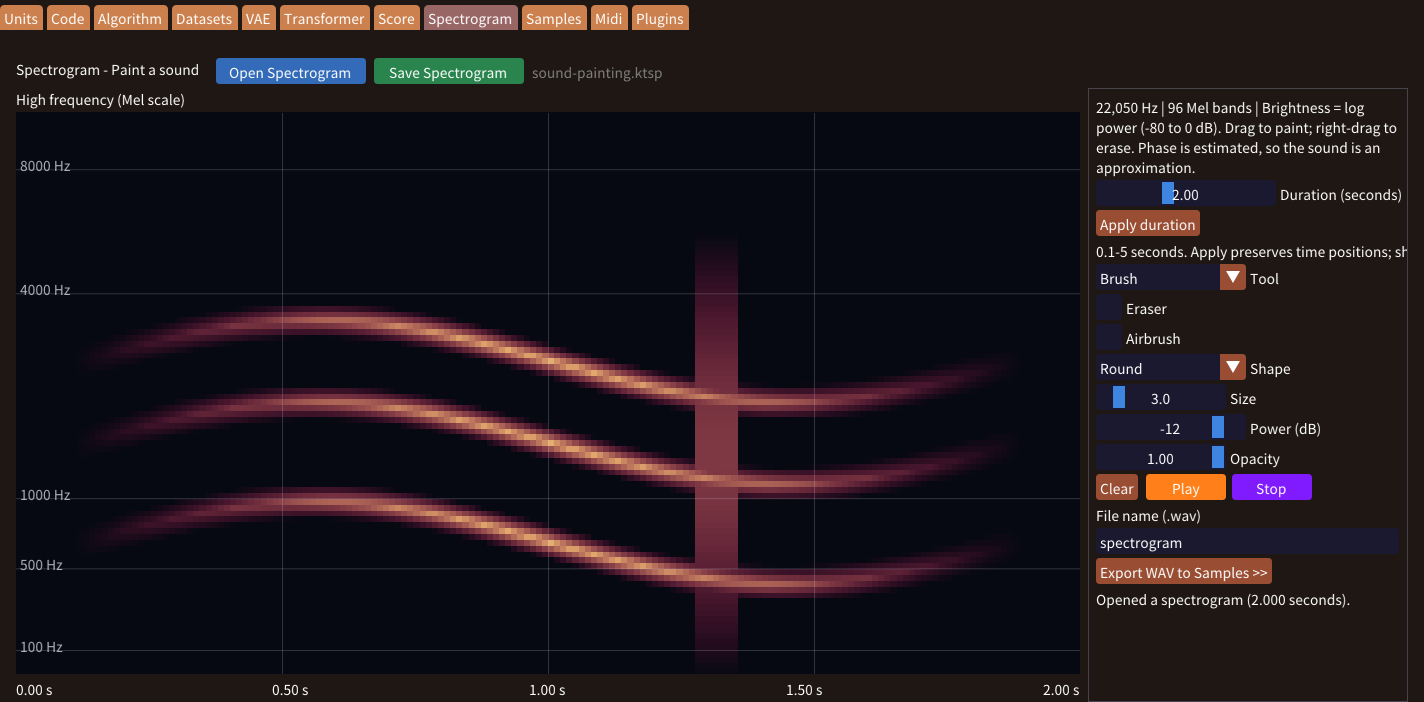
Paint a Log-Mel spectrogram: time runs horizontally, frequency vertically, and brightness represents sound power. Blank areas are silent. The app reconstructs a sound from your painting.
- Set the duration from 0.1 to 5 seconds and press Apply duration. Extending adds silence on the right; shortening crops the right edge.
- Left-drag to paint with the Brush. Adjust Size, Power (dB) and Opacity, and enable Airbrush to build up paint while holding the mouse down. Choose Gradient and drag a rectangle for a fade.
- Right-drag or use Eraser to remove paint. Press Play to generate and preview the sound, then Stop.
- Use Save Spectrogram to save an editable
.ktsppainting, or Export WAV to Samples >> to create a reusable sound.
Exported sounds go to %LOCALAPPDATA%\CogitsuneMusic\USER_DATA\Samples. A file named my_texture.wav can then be played from Code with sampler("my_texture.wav"), and analysed in Transcribe.
The sound is an approximate reconstruction: a painted spectrogram contains no phase information. Save .ktsp when you want to continue painting later; WAV stores the rendered audio.
Share as a video
Share Studio: music, layers and keyframes
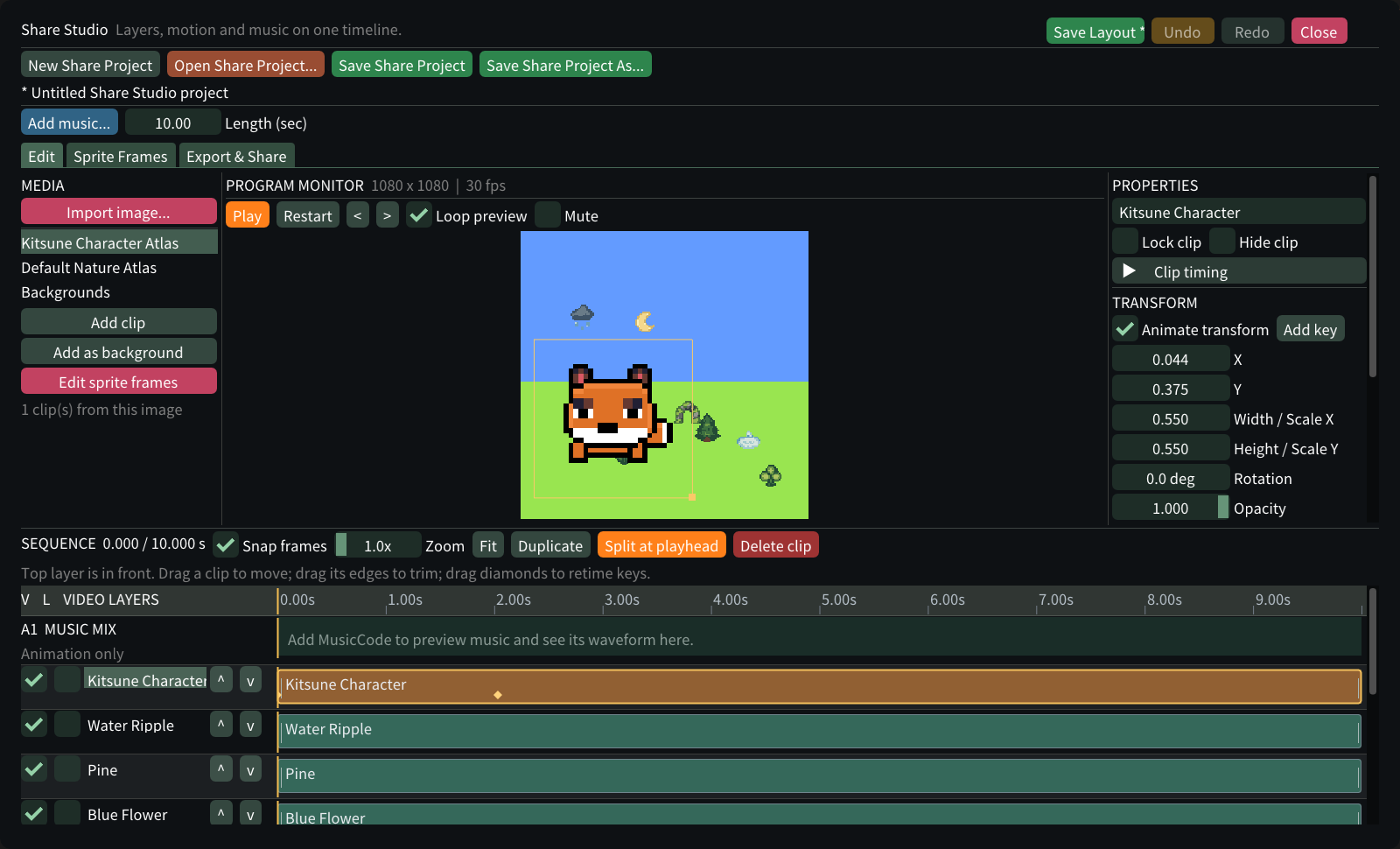
Open Share > Share... to turn your music into a square video or a WAV for social media. Share Studio has media, a program monitor, properties and one timeline for picture and sound.
- Use the built-in Kitsune Character and Nature atlases, or Import image.... Add clip places an image on a layer; Add as background fills the frame. Edit sprite frames sets frame order and timing.
- Press Add music... to connect the music of a code window. The timeline takes the length of the song and shows its waveform.
- Select a clip and turn on Animate transform. Move the playhead, change position, scale, rotation or opacity, and use Add key. Drag clips to move and trim them, and use Split at playhead and Duplicate.
- In Export & Share, choose MP4 and/or WAV, write a caption and hashtags, and press Create Final Files. Open Folder shows the files and Copy Caption copies your text.
Save the whole setup as a Share Studio project (.ktsh). It keeps the images inside the file, so the project still opens if the original images move.
See the pattern
Number graphs
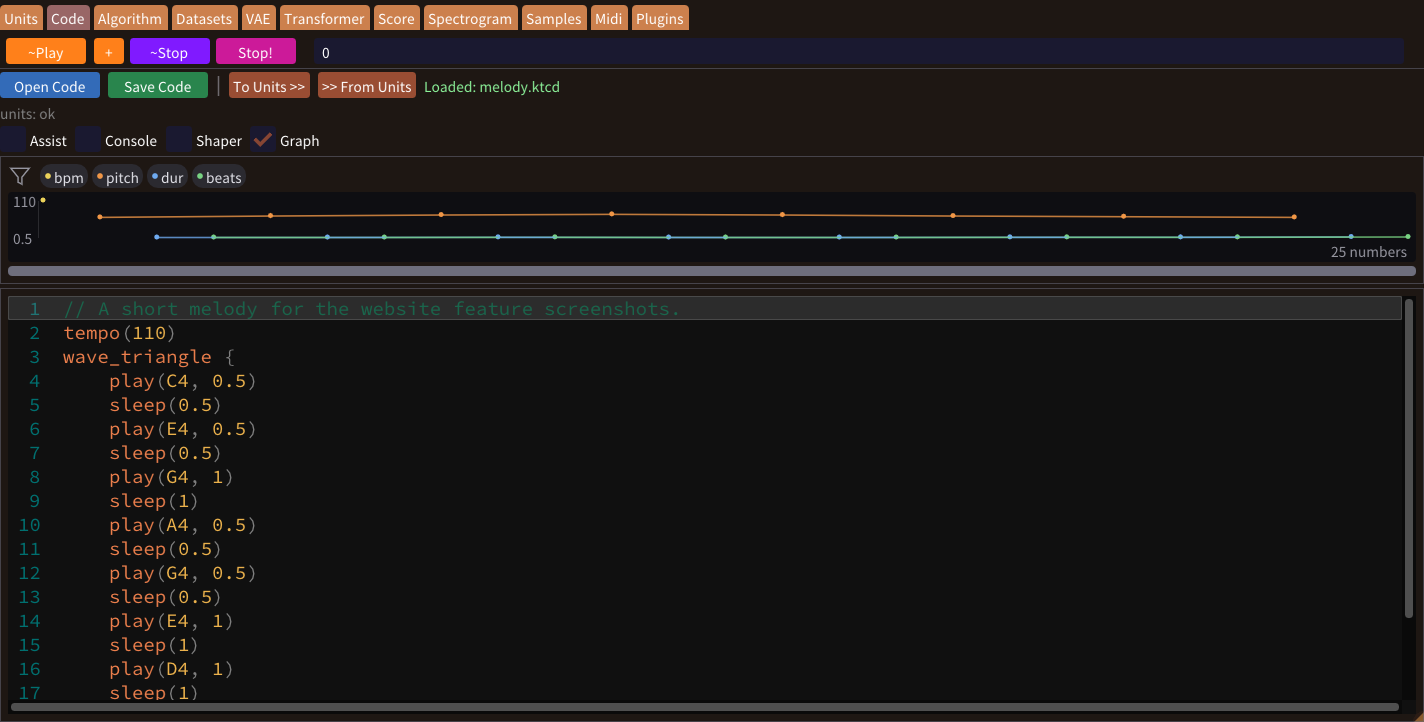
See the shape of musical values before working through a block of code. Filter channels such as bpm, pitch, duration and beats, scroll horizontally, and use Ctrl + mouse wheel to change how many values are visible.
- Code: open View Options and turn on Graph. Double-click a point to jump to its source line.
- Transformer: inspect the generated melody's graph above the code preview.
These graphs inspect values; dragging a point does not edit a note. Code-based graphs show values that can be resolved from the source, not a full playback trace of runtime variables and loops.
Refine a phrase
Effects, Shaper & Code Assist
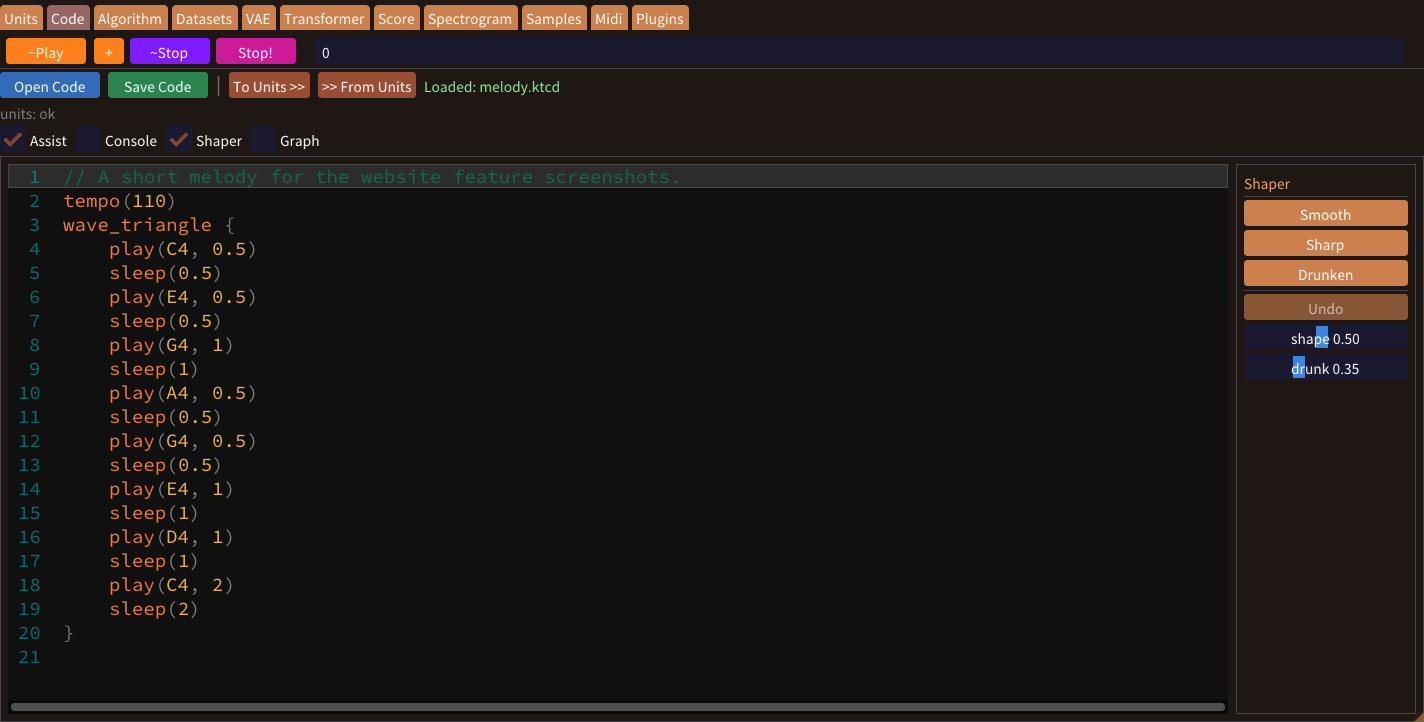
The panel beside the Code editor changes the notes you select. Choose a register and an amount, then apply an effect:
- Brighten, Darken, Octave up, Octave down, Stronger and Softer change pitch and strength.
- Staccato, Legato, Sparse, Dense, Crescendo and Diminuendo change articulation, density and dynamics. More effects and Physics offer further transformations.
- Regenerate selection writes new notes for the selected lines in a chosen key. Undo effect steps back.
Below the effects, Shaper reshapes the whole phrase: Smooth softens changes in pitch, Sharp exaggerates them and Drunken varies note lengths and timing. Undo lets you step back. Expressions and variables that are not direct numeric arguments are left as written.
Help while writing code
Turn on Assist in View Options for command completion and argument hints. Press Ctrl+Space to reopen suggestions; use the arrow keys to select, Tab or Enter to accept, and Esc to close. Mistakes such as unbalanced brackets or an out-of-range tempo() are marked while you type.
Find once, use across windows
One Plugin Manager for the app
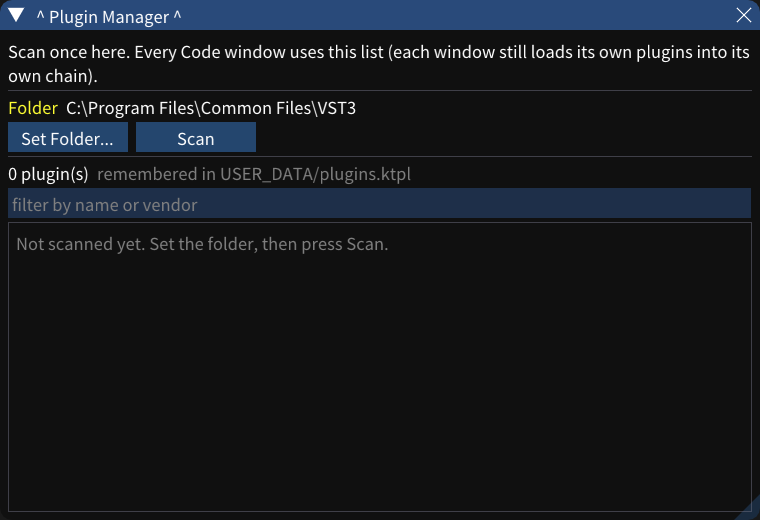
- Open Plugins > Plugin Manager... from the main menu.
- Choose your VST3 folder and run the scan. The manager shows progress, cancellation and a filterable list. The main Plugins menu also provides Scan Now or Rescan Now.
- Open a code window's Plugins tab, filter the shared list, and load a plugin or add it to the chain.
One scan supplies every code window. The discovered list is remembered across restarts, while files that are no longer present are omitted. Each window still has its own loaded plugins and chain.
Instruments and effects in your music
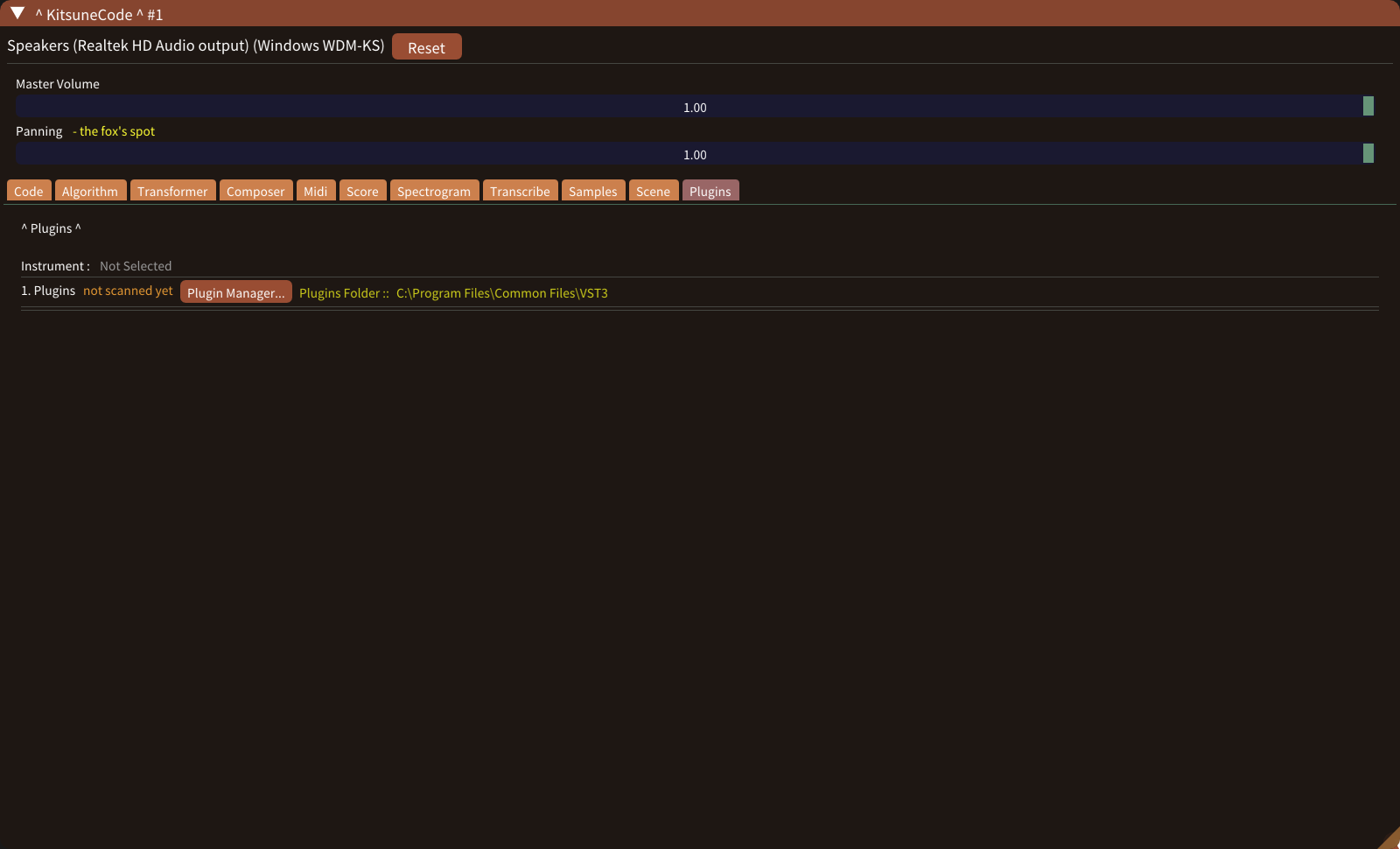
The list marks instruments as [INST] and effects as [FX]. Chain up to four plugins, placing an instrument first and effects after it; each slot shows its latency, and the app keeps the chain time-aligned. If a plugin has no editor window of its own, a simple parameter editor opens instead.
Wrap musical commands in plugin { ... } to route that part through the loaded plugin, and use sidechain { ... } inside it for ducking. In the Midi tab, enable Plugin to play piano-roll notes through the loaded instrument. tempo() reaches the plugins too, so tempo-synced effects follow your music.
Explore built-in sounds and samples → · Play from the piano roll →
Discovery and compatibility are different: a listed plugin is not a guarantee of compatibility. Plugins, their settings and their licenses remain the responsibility of their makers.
Keep your work
Files, projects & shortcuts
| Format | What it stores | Where to save |
|---|---|---|
.ktcd | Music code. | Code → Save Code |
.ktsp | Spectrogram painting and duration. | Spectrogram → Save Spectrogram |
.ktpr | Every code window: code, Composer songs and settings, Algorithm settings, Scene, piano-roll notes, the score being written, Transformer and Transcribe settings, output devices and plugin chains. | Project → Save Executor Project / Save Executor Project As... |
.ktsh | A Share Studio project, including its images, layers, clips, keyframes and export choices. | Share Studio → Save Share Project |
Drag a .ktcd or .ktsp file from Explorer into a code window to open it there. Project > New Executor Project... starts again with empty windows. If a project was saved with a different number of windows, or its audio output is not available, the app asks which output to use for each window before opening it. Settings > Executor Count chooses how many windows the app shows.
Plugins, models and the WAV files used by sampler() stay in their own folders; a project refers to them rather than containing them.
- Ctrl+O / Ctrl+S: open or save the file of the tab you are on.
- Ctrl+Shift+O / Ctrl+Shift+S: open or save the Executor project; Ctrl+Shift+Alt+S saves it under a new name.
- Ctrl+Enter plays, Ctrl+. stops after the current block, and Ctrl+Shift+. invokes Stop!.
- Ctrl+F opens Find notes. In the piano roll, 1 2 3 choose a tool and Space plays or stops.
Open Informations > Keyboard Shortcuts in the app for the full list, and Informations > Tutorials for a guide to every tab.