Windows · September 2026 development updates
New ways to compose, see and save sound
Start with code or a canvas of connected musical ideas. Draw a sample, inspect the shape of a phrase, and turn your music into a score you can print.
These guides describe the Windows development build as of . The controls described here are in the desktop app.
New to the app? Start with the guides to Code, sound, composition, AI and MIDI.
Browse the complete RAMAA tutorial library →
Compose visually
Units: connect your musical ideas
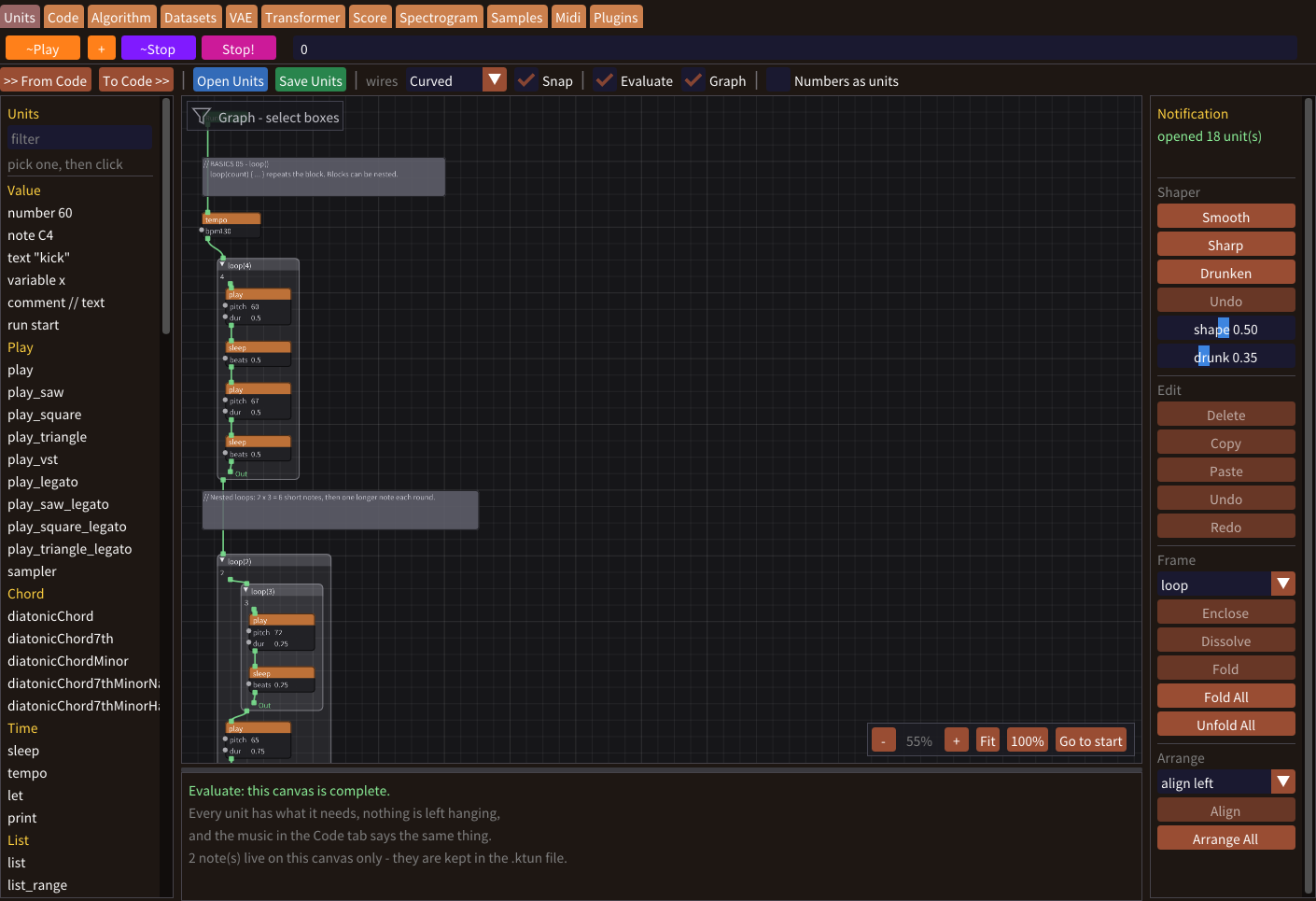
The Units tab is a node editor for music commands, values and calculations. Green Run connections determine the order of commands; value connections feed numbers and expressions into their arguments. Moving a box changes the layout, not the playing order.
Start with a piece of code
- Open or write a phrase in Code, then choose To Units >>. You can also use >> From Code in Units.
- Edit the boxes and connections. Use frames for loops or parallel parts, and use the right-hand Command panel to edit, group and arrange your selection.
- Check Evaluate below the canvas for missing arguments or disconnected boxes. For a command to play, it must be on a complete Run path to Out. Use
sleep()to advance time between notes. - Press ~Play in Units, or Ctrl+Enter. An edited canvas is written to Code before playback; sounding boxes light up. Use To Code >> to transfer the canvas without playing.
Multi-select, copy, paste, duplicate, Undo/Redo, foldable frames, alignment, zoom and Fit help organize larger pieces. The Print frame lets you inspect values in the Console while playing.
Save the canvas as .ktun to keep its layout, comments and unconnected sketches. Code and Units have separate files. Once you edit the canvas, use the conversion buttons to move changes between them.
Draw a sound
Spectrogram: paint, listen and reuse
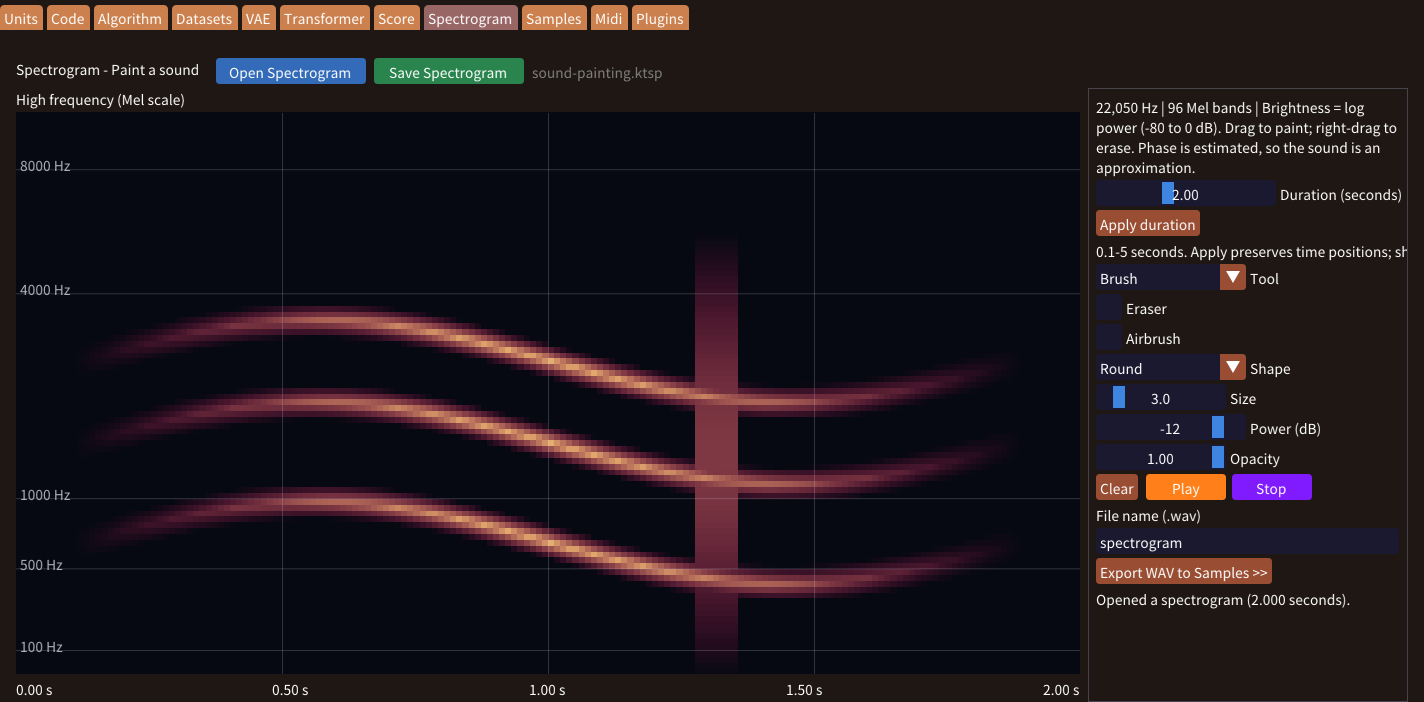
Paint a Log-Mel spectrogram: time runs horizontally, frequency vertically, and brightness represents sound power. Blank areas are silent. The app reconstructs a sound from your painting.
- Open Spectrogram. Set Duration from 0.1 to 5 seconds and press Apply duration. The default is 2 seconds. Extending adds silence on the right; shortening crops the right edge.
- Left-drag to paint. Choose Round, Soft, Square, Grain or Hatch, then adjust Size, Power and Opacity. Enable Airbrush to build up paint while holding the mouse down.
- For a fade, select Gradient and drag a rectangle. Choose Horizontal, Vertical or Diagonal and set the power and opacity at both ends. Release to apply, or press Esc to cancel.
- Right-drag or use Eraser to remove paint with the selected tool. Press Play to generate and preview the sound, then Stop to stop the preview.
- Use Save Spectrogram to save an editable
.ktsppainting, or Export WAV to Samples >> to create a reusable sound.
WAV export produces 22,050 Hz mono PCM16 audio in Documents/CogitsuneMusic/USER_DATA/Samples. Use letters, numbers or underscores for the name; an existing name receives a numeric suffix. The Samples list refreshes after export.
For example, a file named my_texture.wav can be played from Code with sampler("my_texture.wav").
The sound is an approximate reconstruction: a painted spectrogram contains no phase information. Preview uses the default audio output independently of Code's mixer and effects. Save .ktsp when you want to continue painting later; WAV stores the rendered audio.
Read & print
Score: from code to sheet music
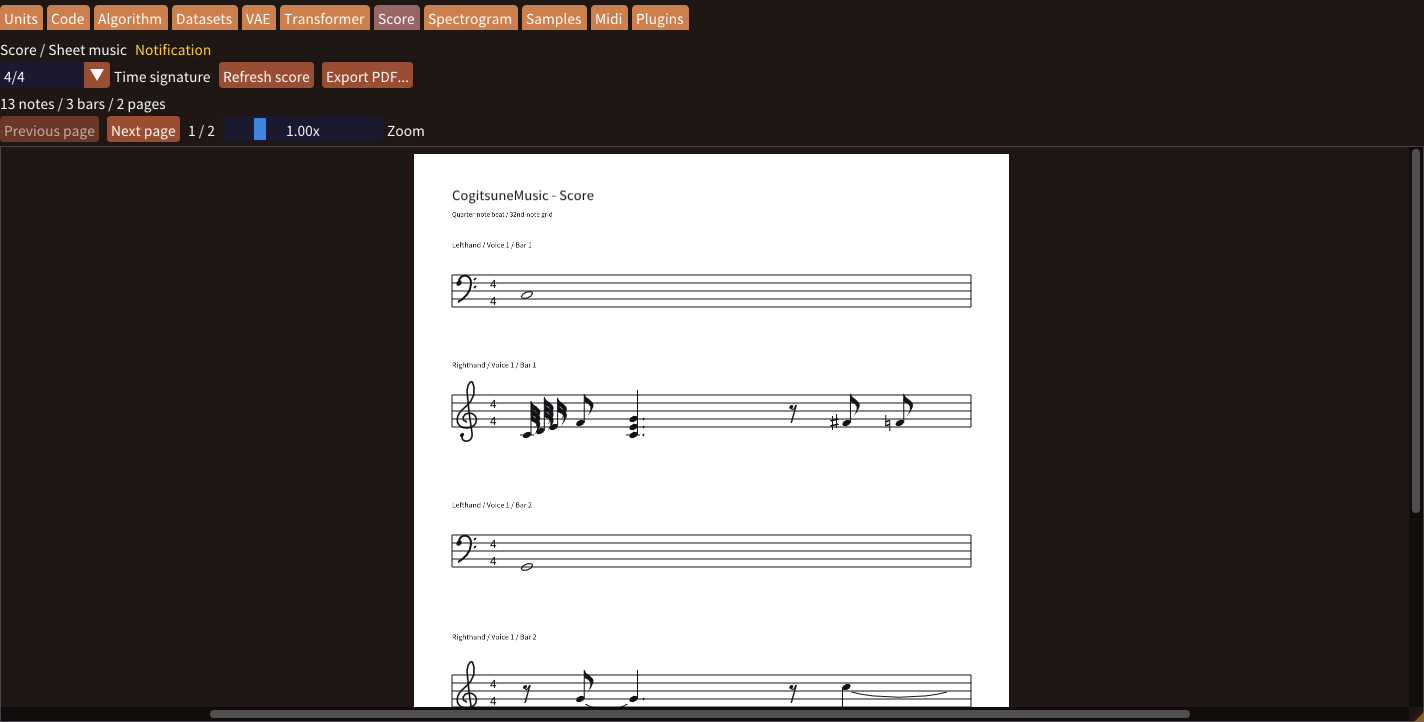
- Write or open music in Code, then open Score. The score is generated in the background without starting playback.
- Choose Time signature: 4/4, 3/4, 6/8 or 1/2. Use Zoom and the page controls to inspect the notation.
- Click a note to return to its source line in Code. Hold the middle mouse button and drag left or right to pan the score.
- Choose Export PDF... to save every page as an A4 vector PDF.
Code changes update the score when you return to the tab. Use Refresh score to reevaluate a piece that uses random values. Hover over the yellow Notification label for controls and notation notes.
Score shows pitched notes, chords, rests and ties, with timing rounded to 32nd-note steps. Sampler audio is not transcribed. Tuplets, beaming, key signatures, dynamics and articulation are not currently included.
See the pattern
Number graphs across five tabs
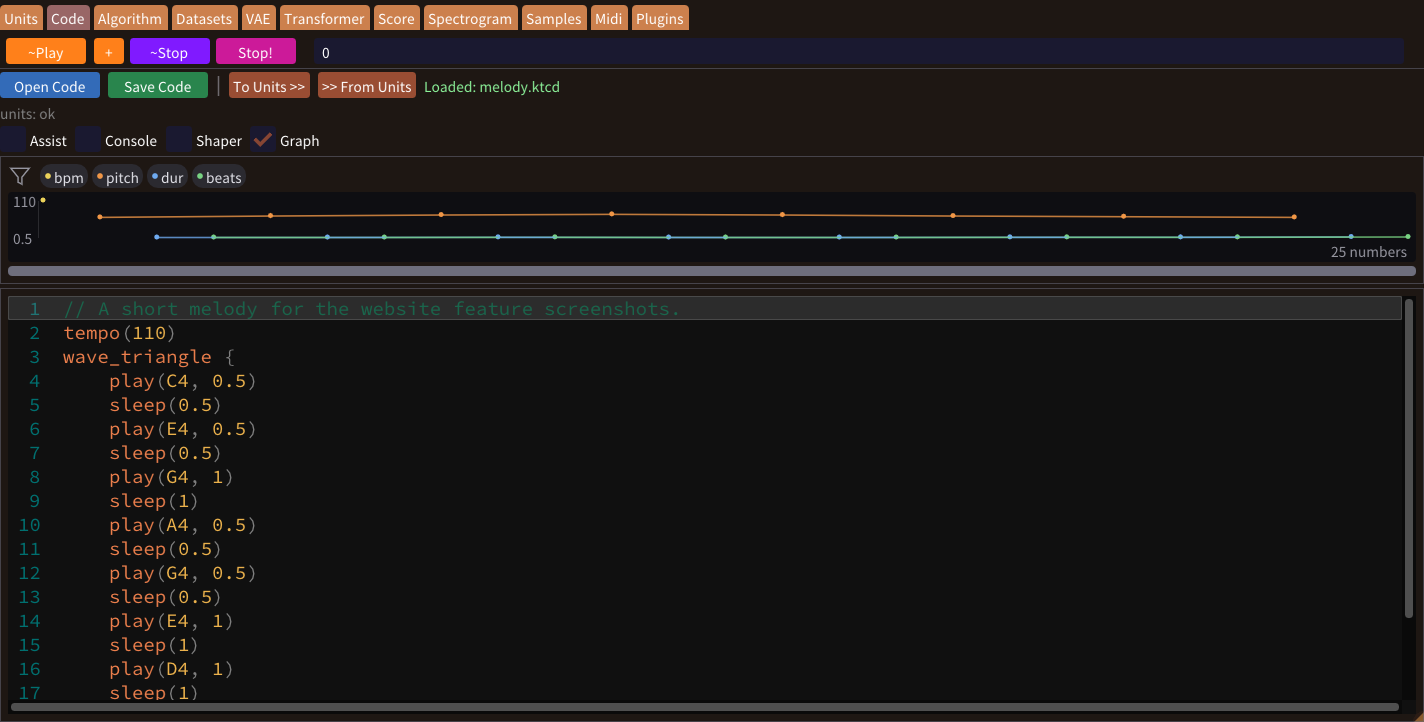
See the shape of musical values before working through a table or a block of code. Filter channels such as pitch and duration, scroll horizontally, and use Ctrl + mouse wheel to change how many values are visible.
- Units: select boxes or a frame to show their numeric values in Run order. Click a point to locate its box; double-click to jump to the associated Code line.
- Code: enable the Graph checkbox above the editor. Double-click a point to jump to its source line.
- Datasets: inspect Imported shape above the imported phrase's note table.
- VAE: inspect Generated shape above the generated notes.
- Transformer: inspect the generated code's graph above the code preview.
These graphs inspect values; dragging a point does not edit a note. Code-based graphs show values that can be resolved from the source, not a full playback trace of runtime variables and loops.
Refine a phrase
Shaper & Code Assist
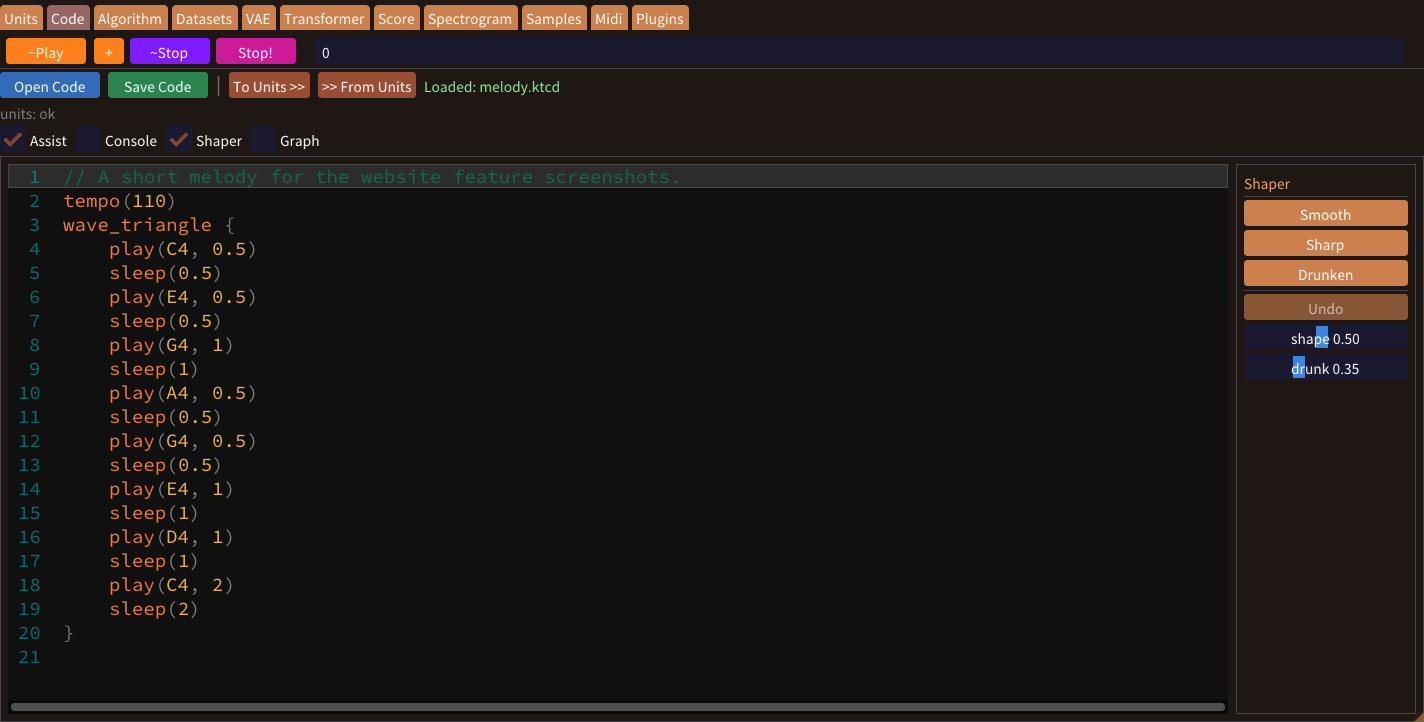
Both Code and Units have a Shaper panel on the right. Each transformation acts on the current tab, and Undo lets you step back.
- Smooth softens changes in pitch.
- Sharp exaggerates changes in pitch.
- Drunken varies note lengths and the timing between notes.
In Units, Shaper preserves box positions and connections. If one shared value would need different results, separate that value before applying the transformation. In Code, expressions and variables that are not direct numeric arguments are left as written.
Help while writing code
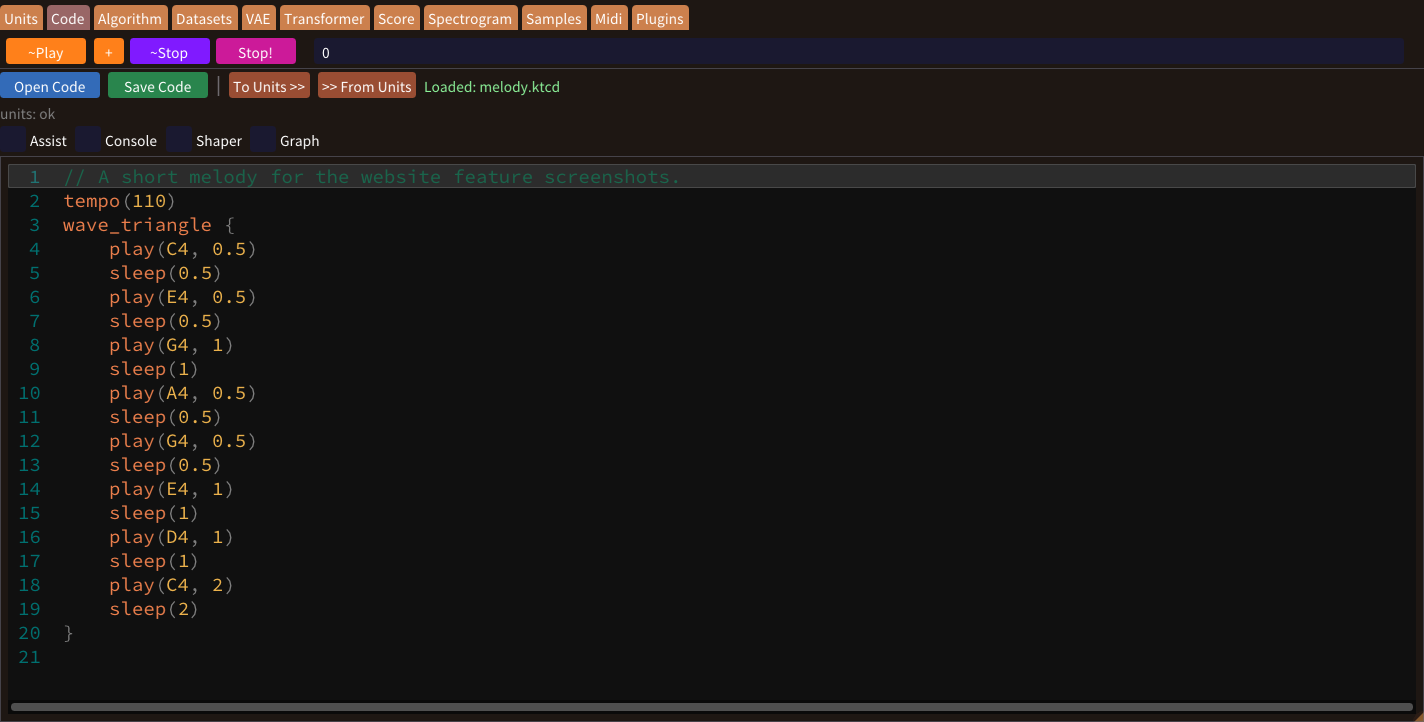
Enable Assist for command completion and argument hints. Suggestions appear beside the editor when there is room, or below the cursor near the screen edge. Press Ctrl+Space to reopen suggestions; use the arrow keys to select, Tab or Enter to accept, and Esc to close.
Find once, use across windows
One Plugin Manager for the app
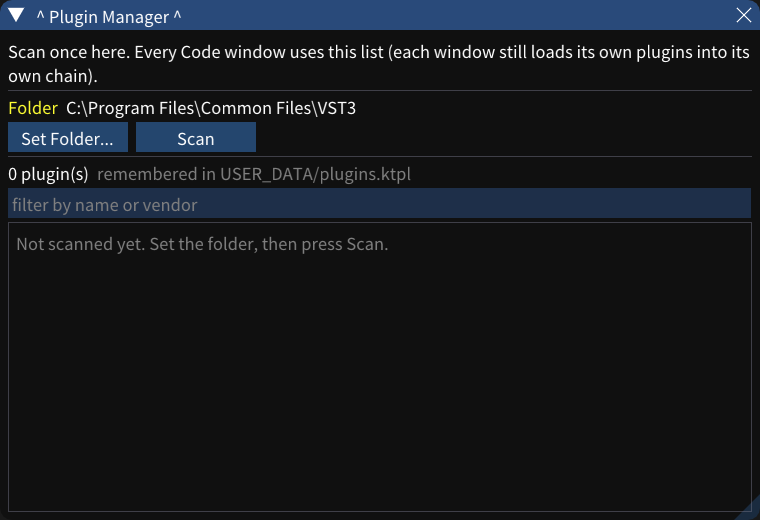
- Open Plugins > Plugin Manager... from the main menu.
- Choose your VST3 folder and run Scan. The manager shows progress, cancellation and a filterable list. The main Plugins menu also provides Scan Now or Rescan Now.
- Open a code window's Plugins tab, filter the shared list, and use Load Selected or Add to Chain.
One scan supplies every code window. The discovered list is remembered across restarts, while files that are no longer present are omitted. Each window still has its own loaded plugins and chain.
Instruments and effects in your music
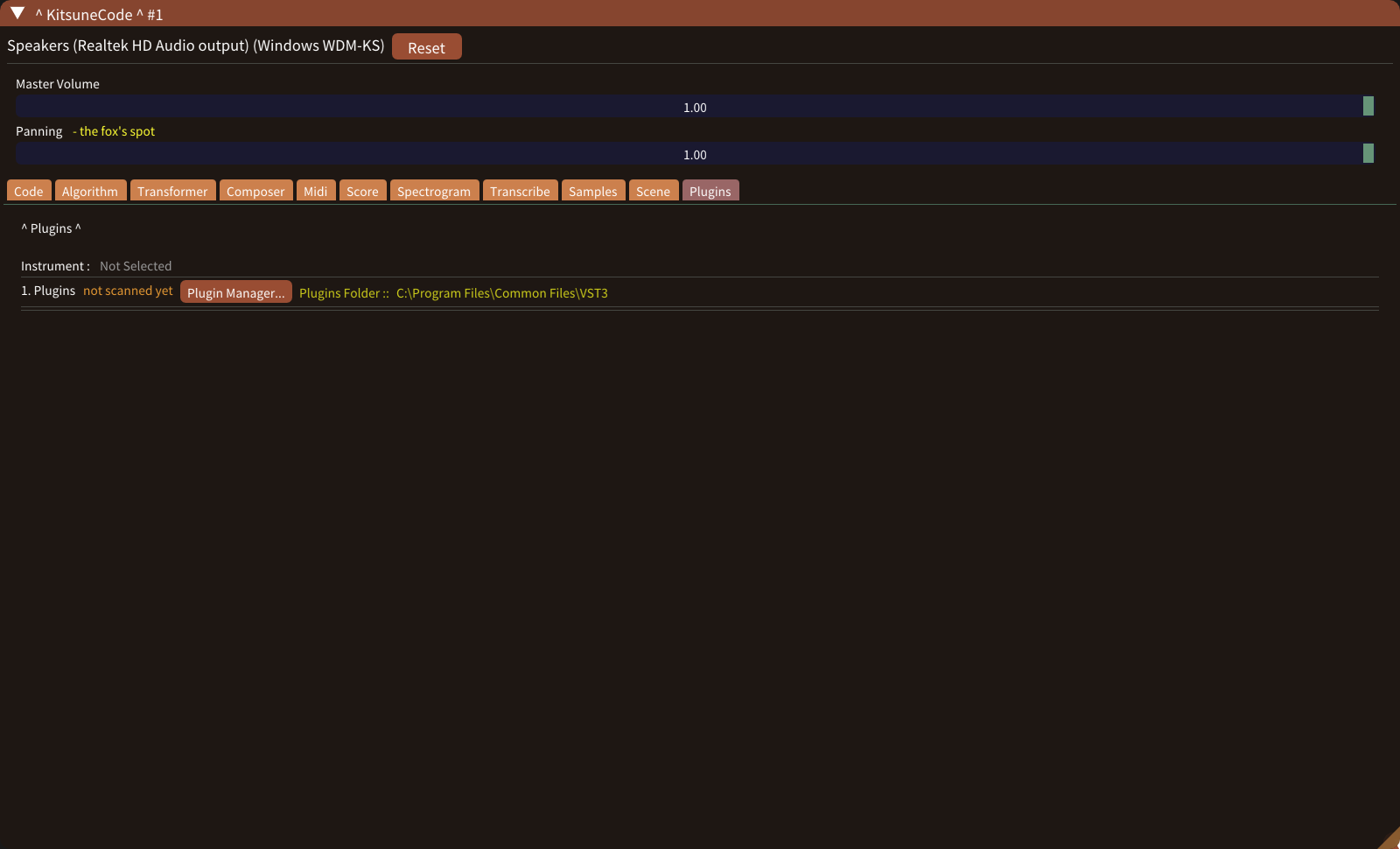
An instrument receives the notes in your code; an effect processes audio. Use Add to Chain to combine up to four plugins, placing an instrument first and effects after it. Open a plugin's editor to adjust its sound.
Wrap musical commands in plugin { ... } to route that part through the loaded plugin. In the Midi tab, enable Plugin to play piano-roll notes through the loaded plugin instead of a built-in waveform.
Explore built-in sounds and samples → · Play from the piano roll →
Discovery and compatibility are different: a listed plugin is not a guarantee of compatibility. Per-plugin enable/disable controls and a blacklist are not currently provided.
Keep your work
Files, projects & shortcuts
| Format | What it stores | Where to save |
|---|---|---|
.ktcd | Music code. | Code → Save Code |
.ktun | Units canvas, layout, wires, comments and sketches. | Units → Save Units |
.ktsp | Spectrogram painting and duration. Brush settings are not included. | Spectrogram → Save Spectrogram |
.ktpr | Code and Units for each window, plus Spectrogram paintings where present. | Project → Save Project / Save Project As... |
Drag a .ktcd, .ktun or .ktsp file from Explorer into the app to open its corresponding tab. A .ktpr opens a multi-window project.
- Ctrl+O / Ctrl+S: open or save the active Code, Units or Spectrogram tab's file.
- Ctrl+Shift+O / Ctrl+Shift+S: open or save a project.
- Ctrl+Shift+Alt+S: save a project under a new name.
- In Code and Units, Ctrl+Enter plays, Ctrl+. stops, and Ctrl+Shift+. invokes Stop!.
Open Informations > Keyboard Shortcuts in the app for the full list. Bundled samples also include Units canvases and projects to explore.